Digester 1.2 by Aron Nelson 5/3/96
Digester 1.3b4 is available
I have been doing some experimenting with the program Easy View. Basically
if you read the online Newsletter TidBITS, then you may know that the program
Easy View provides a nice indexed listing of all the topics and allows you
to search through the articles for any text you may want to find.
I liked the recent programs available for Emailer that take all your mail
from your Filing Cabinet and turn them into big files which contain the
text of the the entire folder of messages. However when I tried to use it
with Easy View, for some reason I could never get it to format or display
the proper data! :-(
Anyway, that's why Digester was born. It goes through your Filing Cabinet
and makes a single text file for every folder contained within it. It formats
the text files in such a way that Easy View 2.5 is quite happy to format
and index all your mail. The search functions in Easy View are faster than
searching in Emailer.
There are several benefits to using Digester:
Files take up less space since there are fewer files and they are much bigger
so they waste less disk space on large hard drives.
Consider the text digests that Digester creates as backups but in an easier-to-read
form than a plain text file - because it's indexed with Easy View.
The processed mail files that get put in Digests can be automatically moved
to the Emailer Deleted Mail folder. No more old mail sitting around and
slowing down your Filed Mail folders.
Searching for text is faster in Easy View than with Emailer. Although the
search is primitive in Easy View, it can be much more useful than the slow
search in Emailer.
Once a digest has been indexed, Easy View will display it right away. You
don't have to wait for Filing Cabinets to fill up before checking out your
mail.
Less Windows - Using Easy View - no more double clicks to see messages.
Simply click once or use the arrow keys to browse your messages.
It's FREE.
How to use Digester
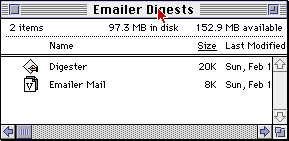
Create a folder called Emailer Digests for example, and place the Internet
Mail Sample Format file found in your Easy View folder into it. For example:
Put the file Easy View Folder:Sample Formats:Internet Mail Folder:Internet
Mail into your new folder called "Emailer Digests".
Rename the file Internet Mail to Emailer Mail:
 Copy Internet mail into your Emailer Digets folder and rename to
Place Digester within this folder.
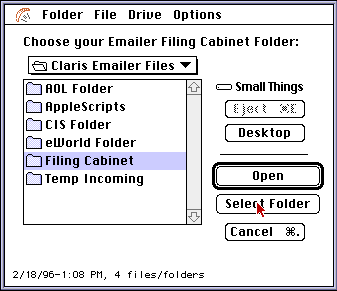
Run Digester and locate your Filing Cabinet using the Select Emailer Filing
Cabinet... command in the File Menu. There are two ways to select this folder,
the first way is to actually highlite the folder and then click on the Select
"Folder" button. This is the recommended way to select a folder.
The second way is to go into the Filing Cabinet folder and click on the
BLANK part below the folders (effectively deselecting any folders) and click
on the Select "Folder" button.
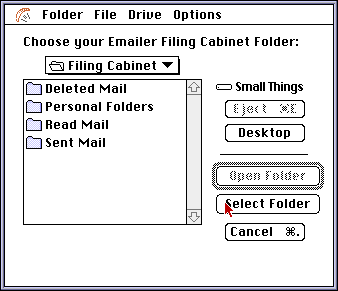
Take care and make sure that no folders are hilighted as in the above example.
Check Digester's settings in the File Menu and make sure that they are set
correctly for your situation.
Please understand what the settings do before running Digester!
Once you have Digester's settings the way you want, choose Create Digests
(Cmd-D) from the File Menu.
Digester will process all of your mail folders and create a text file for
each folder. After it has finished processing your folders, double-click
on the Emailer Mail document to launch Easy View 2.5 and check out your
mail.
 Double click the Emailer Mail document to launch Easy View 2.5.
IF YOU ALREADY HAVE DIGESTS!
Version 1.23 changes the keyword from 'From' to 'Fr*m'
in an effort to make Easy View's parsing easier. If you already have existing
Digests from versions 1.22 and earlier, you need to use a Word Processor
to replace all 'From ' keywords to 'Fr*m ' in your existing
Digests. (I searched for 'From ' and replaced with 'Fr*m '
- a case sensitive search for each digest I already had) You also need to
use the latest Emailer Mail Easy View document included with this release.
Version 1.2 adds the following items in the File Menu:
Select Emailer Filing Cabinet...
Choosing this brings up the "pick a folder dialog". Locate and
select your Emailer Filing Cabinet using this dialog. Once you have chosen
your Filing Cabinet, Digester will remember this setting.
Create Digests
Choose this after you have selected your Emailer Filing Cabinet. This command
is the one that actually starts Digester processing your mail files. The
way that the mail is processed is determined by the next few choices...
Always Append to Existing Digests
If CHECKED, digests will never be overwritten when Digester is run. All
mail fiels will be appended to the existing digests. Make sure you have
cleared out your old mail in the filing cabinets or you could get duplicates
in the digests (use the Move Processed Mail to Deleted Mail Folder command
described below). If UNCHECKED, digests will always be overwritten
even if they exist.
Move Processed Mail to Deleted Mail Folder
After Mail is processed and the Digests created, the mail will be placed
in the Deleted Mail Folder. This command is most commonly used with the
Always Append to Existing Digests command. That way everytime Digester is
run, your mail is archived to Digests and the mail is moved to the Deleted
Mail Folder where you can delete it using Emailer.
Auto Quit after Processing Mail
Quit Digester after mail is processed.
In addition, the "pick a folder" dialog has been improved and
should be easier to use. Various progress dialogs have been added as well.
Version 1.24 adds a Skip Folders Menu
Any folders checked in this menu will be skipped when processing mail.
Revision:
1.2.8 - Some users had messages that had no 'From' line at all. Digester
was modified to ignore these problems and will now put 'Fr*m unknown' in
the message archive. It will not abort processing messages.
1.2.7 - It was found that some people have many messages without a carriage
return at the end. Digester now handles this properly.
1.2.6 - Fixed problem with Digester not processing certain folders with
large DirID numbers.
1.2.5 - Fixes deleted mail folder prompt if Deleted Mail folder is found.
Fixes possible crash when choosing Emailer Folder over and over.
Recommended Settings:
Always Append to Existing Digests CHECKED
Move Processed Mail to Deleted Mail Folder CHECKED
This setting will create digests, appending to any existing ones and
clear your Filing Cabinet of all stored mail. The "old" mail will
be moved to the Emailer Deleted Mail folder. With these settings Easy View
is used to view any old mail and Emailer is only used for current mail since
the last run of Digester.
Always Append to Existing Digests UNCHECKED
Move Processed Mail to Deleted Mail Folder UNCHECKED
Use this setting if you want to create a quick snapshot of the current Filing
Cabinets for backup or for browsing. NEW digests are created overwriting
old ones everytime Digester is run. Nothing is moved in the Filing Cabinets.
The resultant digests can be backed up on removeable media or browsed right
away with Easy View.
Always Append to Existing Digests UNCHECKED
Move Processed Mail to Deleted Mail Folder CHECKED
Use this setting if you wish to clear all your Filing Cabinets of stored
mail and wish to create new digests for backup. The resultant digests can
be backed up on removeable media or browsed right away with Easy View.
DISCLAIMER
The standard disclaimers apply to this program. It is a development quality
- low tech interface - hack. The intent was to make your email life easier.
I am not liable for any actions that result in the use of Digester in any
way. USE THIS PROGRAM AT YOUR OWN RISK!
I recommend that you practice with a COPY of your Emailer File Cabinet
to explore the various options before running Digester on your Filing Cabinet.
Anyway, if you decide to do so:
You can download Digester here... (38K)
I have included a sample Emailer Format File for your convenience.
You can download Easy View 2.5 here... (224K)
If you want to experiment with FileMaker
databases, try Digester 1.3b4 - an experimental
version.
Back to Aron's Web Page